You can enter individual values for tolerance and roughness fields for a specific GCD. You can edit these tolerances in one of two ways:
-
From the Tolerance Editor ( Don't confuse with the Tolerance Policy Editor).
-
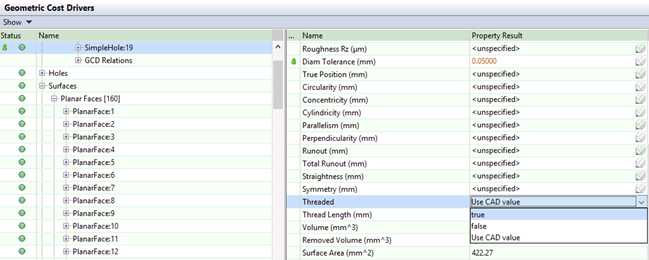
From the editable tolerance and roughness fields in the Geometric Cost Drivers pane, where you can also add threads to a GCD.
Enter tolerance and roughness values using the Tolerance Editor
-
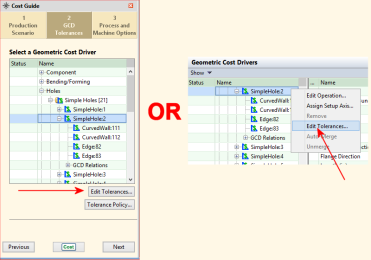
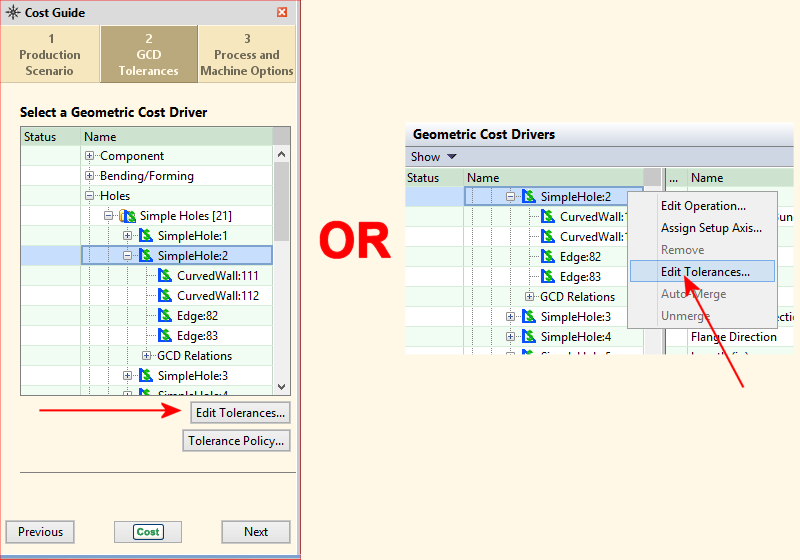
There are two ways to open the Tolerance Editor. Select a GCD either:
-
From the tab of the Cost Guide, click the Edit Tolerances button.
-
From the Geometric Cost select Edit Tolerances from the right-click context menu.
-
-
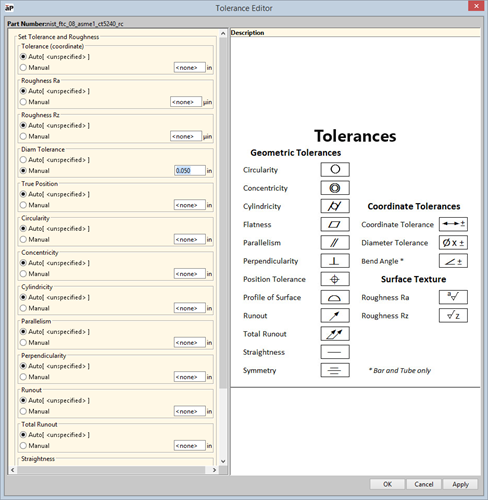
The Tolerance Editor displays, showing a list of tolerances that apply to that type of GCD (see the table in the section How tolerances map to GCDs for more information).
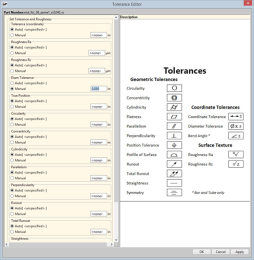
-
For the tolerance value(s) that you wish to set, Manual, and enter the value in the associated field.
-
Click OK when done.
Enter tolerance and roughness values or adding threads using the Geometric Cost Drivers pane
-
Select the GCD or GCDs to be modified. You can use either the Viewer or the Geometric Cost Drivers pane.
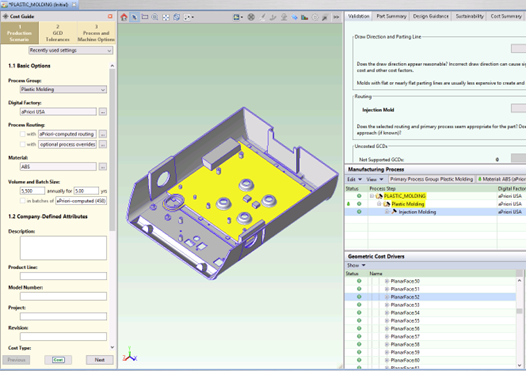
The image below shows that the user has selected a Planar Face GCD in Viewer.
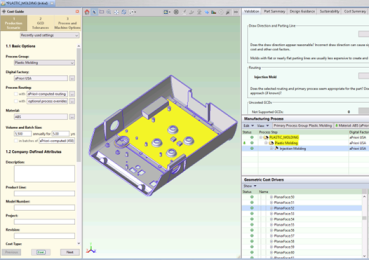
You can select multiple GCDs as long as they are of the same type (such as Planar Face or Curved Wall, and so forth).
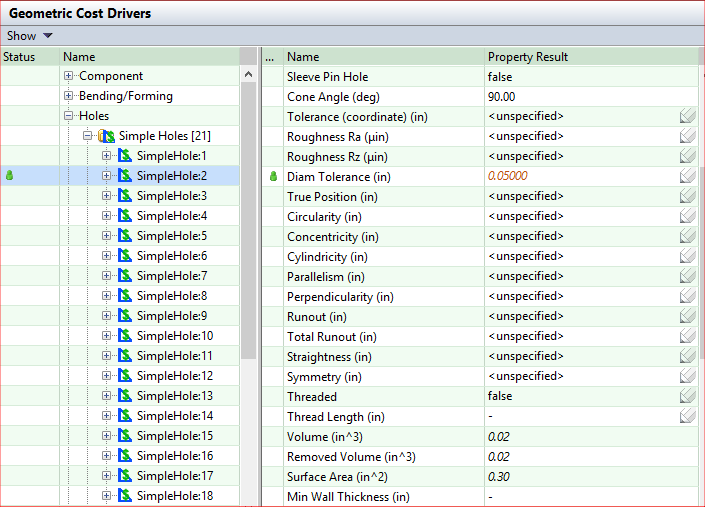
The image below shows that the user has selected a Simple Hole GCD in the Geometric Cost Drivers pane.
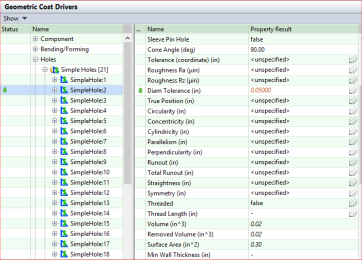
Note that
-
The Name column lists the tolerances that apply to this GCD (along with other values) as well as the properties Threaded and Thread Length. See the table in the section How tolerances map to GCDs for more information.
-
The pencil icon indicates fields that can be edited.
-
-
Double-click the field in the Property Result column enter the value you wish to apply.
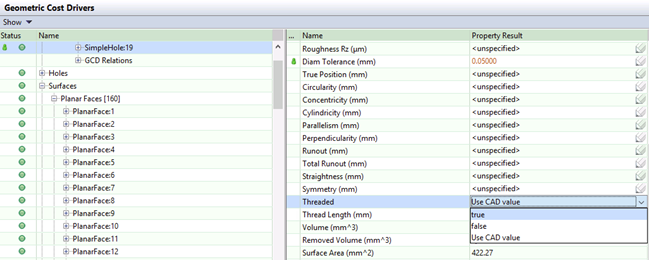
Note that override values are displayed in red italic and a green User Override icon appears in the left column.
-
To remove an existing tolerance value, you can double-click and delete the entered value, or right-click the value and select Return to Auto-Select from the context menu to re-display unspecified in the field.
-
Press Enter, Tab, or click on another property.